Is your business getting the most out of Copilot?
Most businesses use Copilot like a search engine. Here's how to get real value from it in Outlook, Teams, Word and Excel, and use it safely.

Image Source: Microsoft
You've probably seen the Copilot icon showing up in Outlook, Word or Teams. Most people use it like they do Google. Ask a question, get an answer, move on. But that only scratches the surface of what this AI assistant can do.
Copilot is Microsoft's AI assistant, built into the Microsoft 365 apps your team already uses. If used well and to its full capability, Copilot can add real efficiencies to a business by saving time on admin-heavy tasks, such as: navigating long email threads, summarising meeting notes, writing first drafts or analysing messy spreadsheets.
Here's how to get more out of it.
The basics of what Copilot can actually do
Copilot works inside each app, so its functionality does depends on where you are using it.
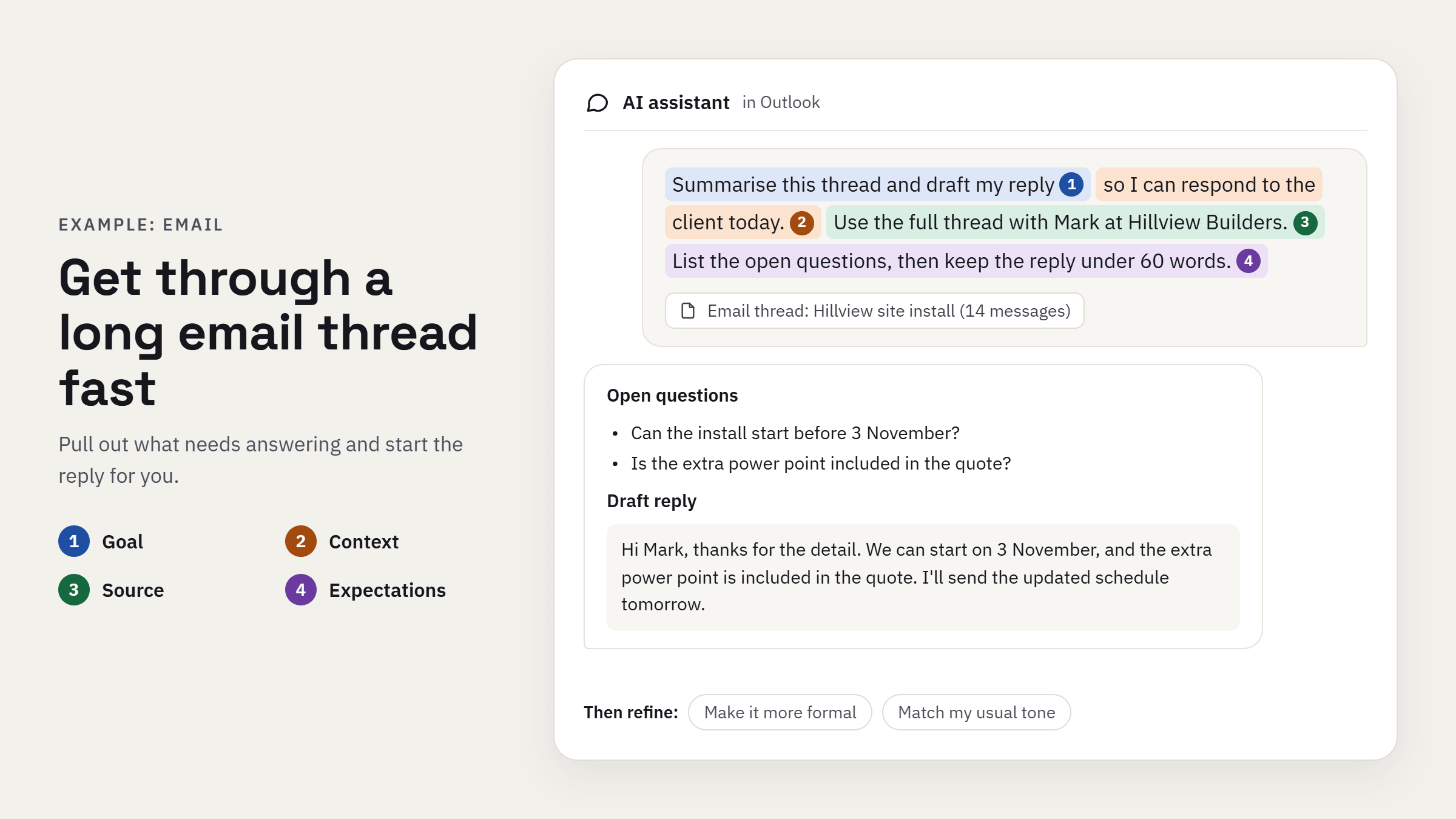
Outlook: Draft emails, change the tone or length, and summarise long threads so you can see the action items at a glance.
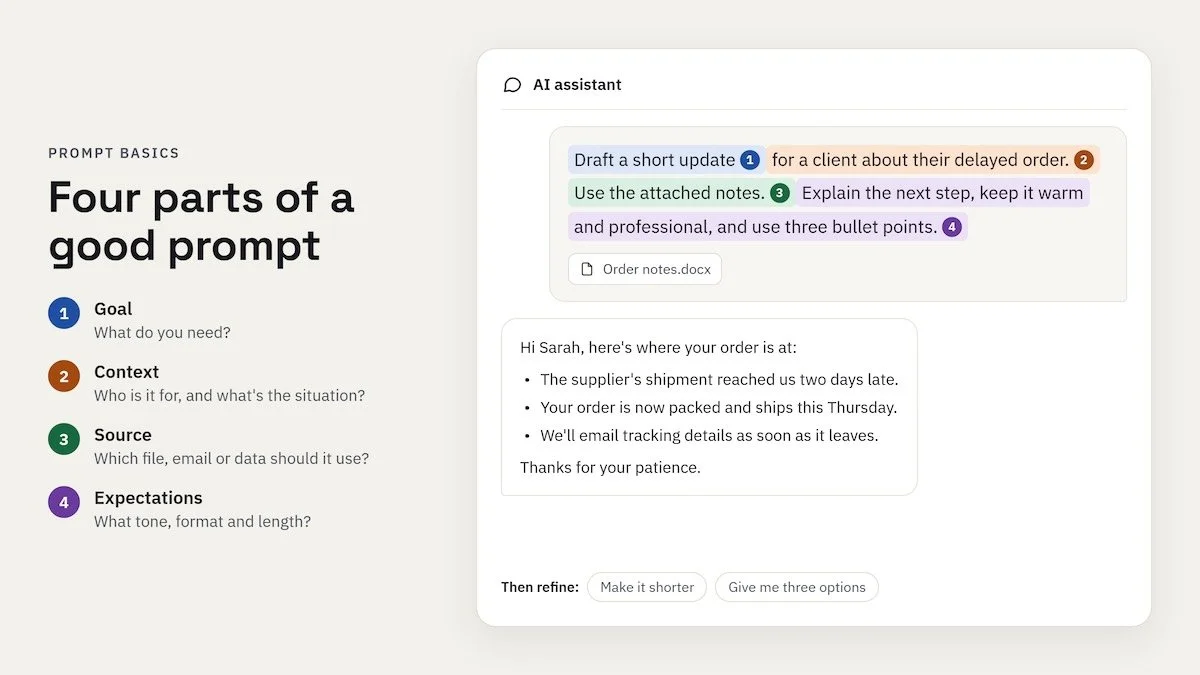
Teams: Recap a meeting or chat you missed, pull out the key decisions, and list who's doing what.
Word: Write a first draft from your notes, rewrite a clunky paragraph, or turn a long document into a one-page summary.
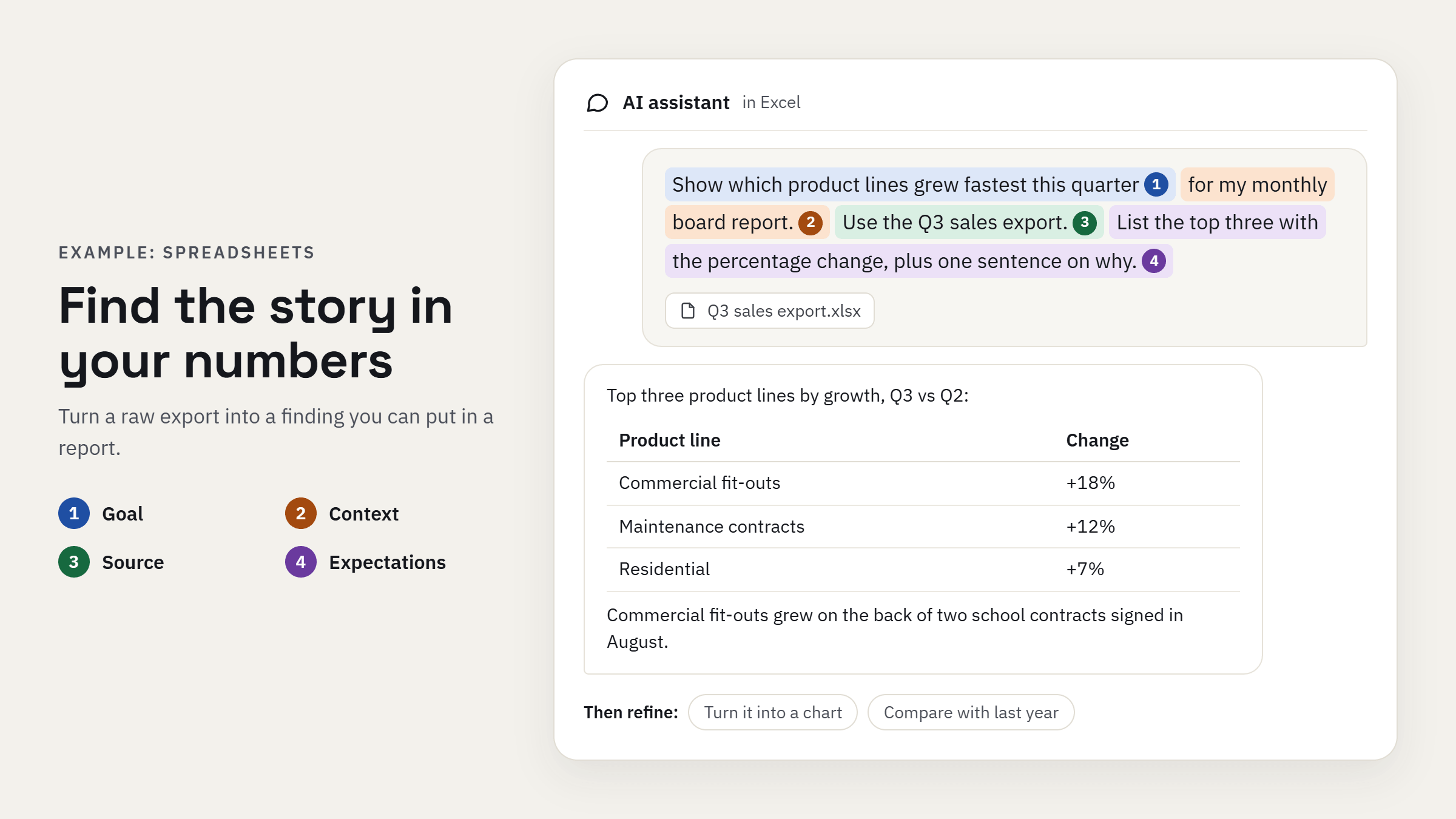
Excel: Spot patterns in your data, explain a formula you've inherited, or suggest a chart.
PowerPoint: Build a draft deck from a Word document, or tidy up the slides you've got.
Copilot also has more advanced functionality through its agents. These are AI assistants that work through multi-step tasks for you, like Microsoft's built-in Researcher and Analyst, or your own agents set up in Agent Builder or Copilot Studio.
Copilot also now allows you to choose your model within conversations, allowing you to harness the power of Claude or ChatGPT.
How to write a good prompt
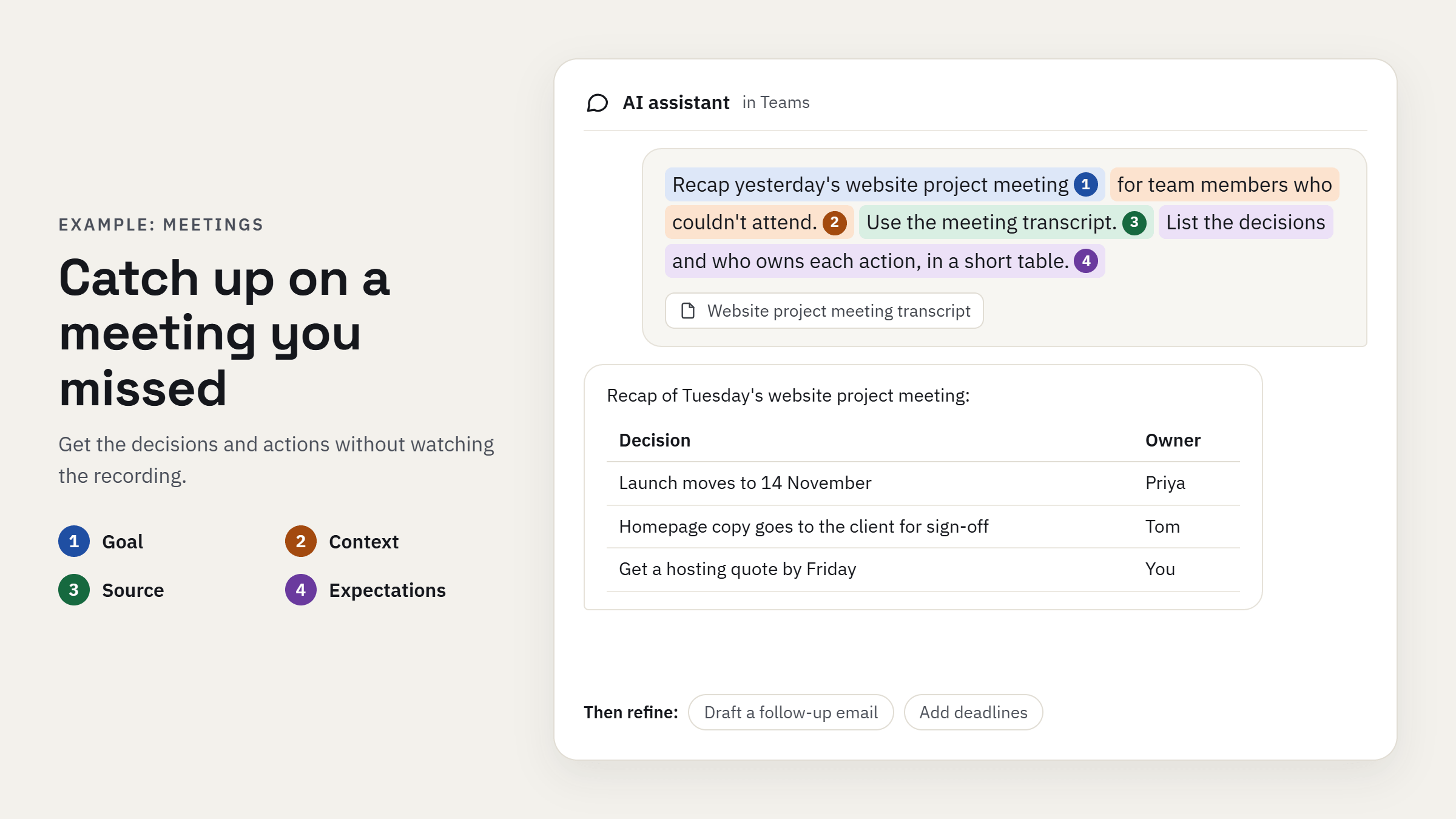
The quality of what you get back depends on what you ask. A good prompt has four parts:
- 1GoalWhat do you need?
- 2ContextWho is it for?
- 3SourceWhich file, email or data should it use?
- 4ExpectationsWhat tone, format and length?
Here's an example
If the first answer isn't quite right, keep going. Follow-ups like "make it shorter" or "give me three options" work well. You can also ask it to learn your writing tone and style from previous sent emails.
Going further: Agents and Workflows
Once your team is comfortable with the basics, Copilot can do much more than answer questions.
The Researcher agent works through a bigger question in several steps. It searches your emails, files and meetings, plus the web, then writes up a report with sources. Think competitor research or a briefing before a big client meeting.
The Analyst agent is built for numbers. Give it a spreadsheet and it runs the calculations properly, rather than estimating. It's handy for sales trends, cost comparisons or a messy data export.
Copilot Notebooks let you gather files, emails and meeting notes on one topic in a single place. You can then keep asking questions about that project without attaching everything again.
Your own Agents are assistants you set up for a specific job. You describe what you want in plain English, point it at the right documents, and share it with your team. For example, an agent could answer new staff questions using your policies and procedures. For more complex jobs, Microsoft's Copilot Studio lets you build agents that connect to other systems and take actions.
The Workflows Agent automates routine tasks across Outlook, Teams and Planner. You describe the routine and Copilot builds it. For example: "Every weekday at 8am, sort my unread emails into 'needs a reply' and 'for your information', then send me a summary in Teams." Workflows is still in early access, so it may not be in your plan yet.
Using Copilot safely
Copilot is only as safe as the way your Microsoft 365 is set up. It can see anything the person using it has access to. For example: If a staff member can open the payroll folder, Copilot can pull from it when they ask a question.
Most businesses have a few files shared more widely than they should be. It's worth checking who can see what before you roll Copilot out across the team. We recommend working with our team to set up Copilot for your business with the right structure from the start. We'll check your permissions and sharing settings first across your users, so team members only access what they can and should.
A few safety habits help too:
Check names, dates, numbers and facts before you send anything Copilot writes
Confirm it used the right source file
Never enter passwords, login details or security codes.
Only share information you're authorised to use
Ensure you’re not oversharing reports
Review SharePoint access regularly
Apply sensitivity labels on payroll, HR and client folders
Update DLP policies that cover Copilot
Enable audit logging of Copilot activity
Governance: Define who can build and share agents, as a policy, since an agent pointed at the wrong library spreads access further
Adhere to your own privacy policy. Are you uploading data that is compliant with what you’ve disclosed to customers.
Licensing: which version do you need?
There are two levels, and the difference matters.
Copilot Chat is the base version that comes with Microsoft 365 business plans at no extra cost. It's a secure AI chat tool that keeps your business data protected, but it doesn't work inside your emails, files and meetings.
Microsoft 365 Copilot is the full version. It works across Outlook, Teams, Word and Excel, draws on your own files and conversations, and includes the advanced features above. You can add it to an existing plan, and since July 2026 Microsoft also offers Business plans with Copilot already included.
Many businesses that started on Copilot Chat are now upgrading to get the full benefit.
Not sure which licence each person needs? Speak to our team. We'll make sure every staff member is licensed correctly, so you're not paying for more than you use.

How ShadowSafe can help
If you want to unlock more efficiency with Copilot assisting your team, we can help with:
Licensing: Working out which version suits each person, so you're not paying for licences nobody uses.
Setup: Checking your permissions and sharing settings first, so Copilot only sees what it should.
Training: Showing your team how to use it well in their day-to-day work, from better prompts to setting up simple agents.
Agents: Setting up custom agents to automate specific routine tasks within your business.
Talk to us about Copilot: Get in touch through our Support Hub or call 07 3185 1777.