How to transfer Microsoft Authenticator to a new phone
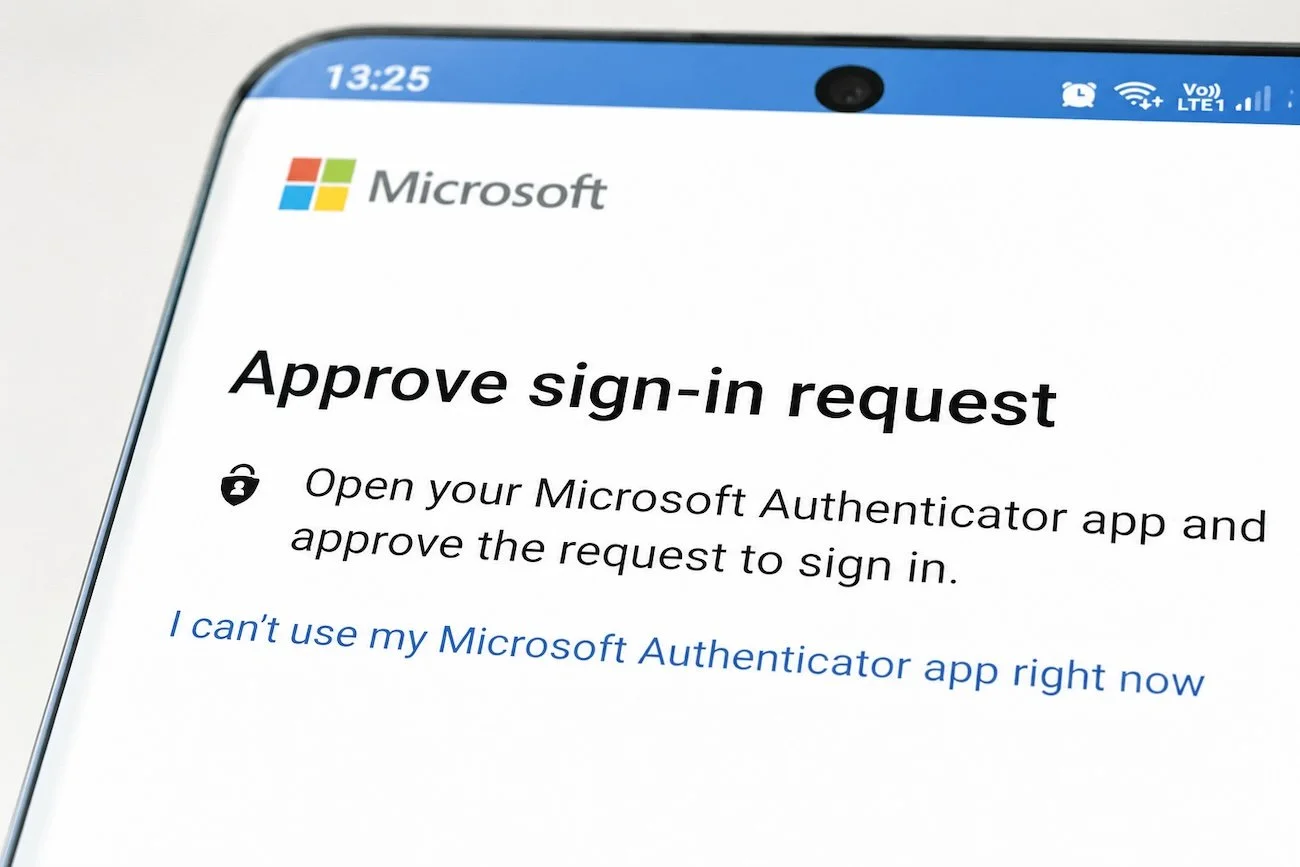
You buy a new phone. You restore your apps, transfer your photos, and get on with your day. Then later you sign into Microsoft 365 and the sign-in prompt goes to a device you no long own or has been wiped. Oh-o!
This happens often to Microsoft users. And it's one of the few simple things that can lock you out of your own business and cause delays.
Why it happens
Microsoft Authenticator doesn't store a password. It holds a key tied to that specific device. Restore your apps and you get the icon, not the key.
Personal accounts can come across with cloud backup, but Microsoft School and Work accounts usually can't, because it’s blocked as a default as best security practice.
If you get locked out
If your old device is wiped, sold or dead, and your new one was never registered, there's no second factor. You’ll need an admin to reset your MFA, and if you are the admin, you're in for an uncomfortable call with Microsoft support.
Since the old device is still trusted, you can go back to use it to log in if it's still registered.
Recovery codes is another option. Check if you’ve saved them to your password manager.
What to do before you transfer to a new phone
Do this before you wipe or trade in the old phone:
1. On the old device:
Open the Authenticator app, tap the account, and check whether it's a personal or work account. For personal Microsoft accounts, turn on cloud backup under Settings, then Backup. For work accounts, go straight to step 2.
2. Register the new device:
From a computer, go to mysignins.microsoft.com/security-info, sign in, and add a new sign-in method. Choose Authenticator app and follow the QR code. Approve the prompt on your new phone.
3. Delete the old one:
On the same page, remove the old device from the list. Don't skip this. It's the whole point.
4. Regenerate recovery codes:
Save them somewhere that isn't a phone. A password manager works.
5. Then wipe the old device: Full factory reset. Signed out of the Apple or Google account first, so it isn't activation locked for the next owner.
A note to business owners
Add this to your offboarding checklist. When someone leaves, their old phone can still be sitting there approving sign-ins.
To ShadowSafe clients: If you're unsure whether your Microsoft 365 sign-ins are set up properly, get in touch with our team via our support channels.