Microsoft is rolling a redesigned SharePoint out to every user right now, and there’s no opt-out this time. Here's what's changed and what to check before your team gets confused.
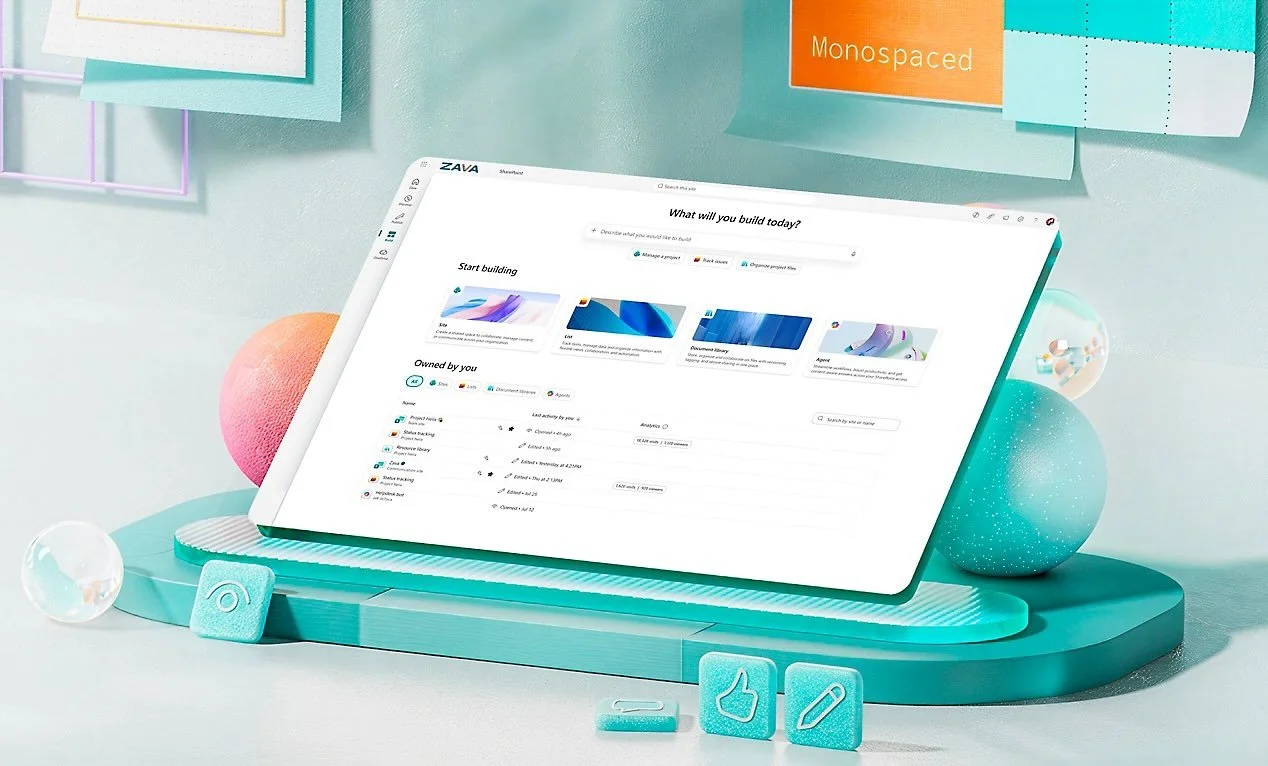
If your business runs on SharePoint, the screen your team logs into is about to change. Microsoft is rolling out its new SharePoint experience now, finishing by mid-July, so there's no going back. It lands on every user automatically.
Most of the changes are cosmetic and harmless. A few have governance and security implications worth a few minutes of your time.
Here's what's new, in short:
A new icon bar replaces the left-hand menu, with four spots: Discover, Publish, Build, and OneDrive
Discover becomes the start page, so what people land on first changes
AI buttons (Summarise, Compare, Ask a question) appear in document libraries, but only for users with a Copilot licence
Filter pills and view tabs put your column names and custom views on full display
A Forms button in every library lets people collect files without giving folder access
Let's unpack each one:
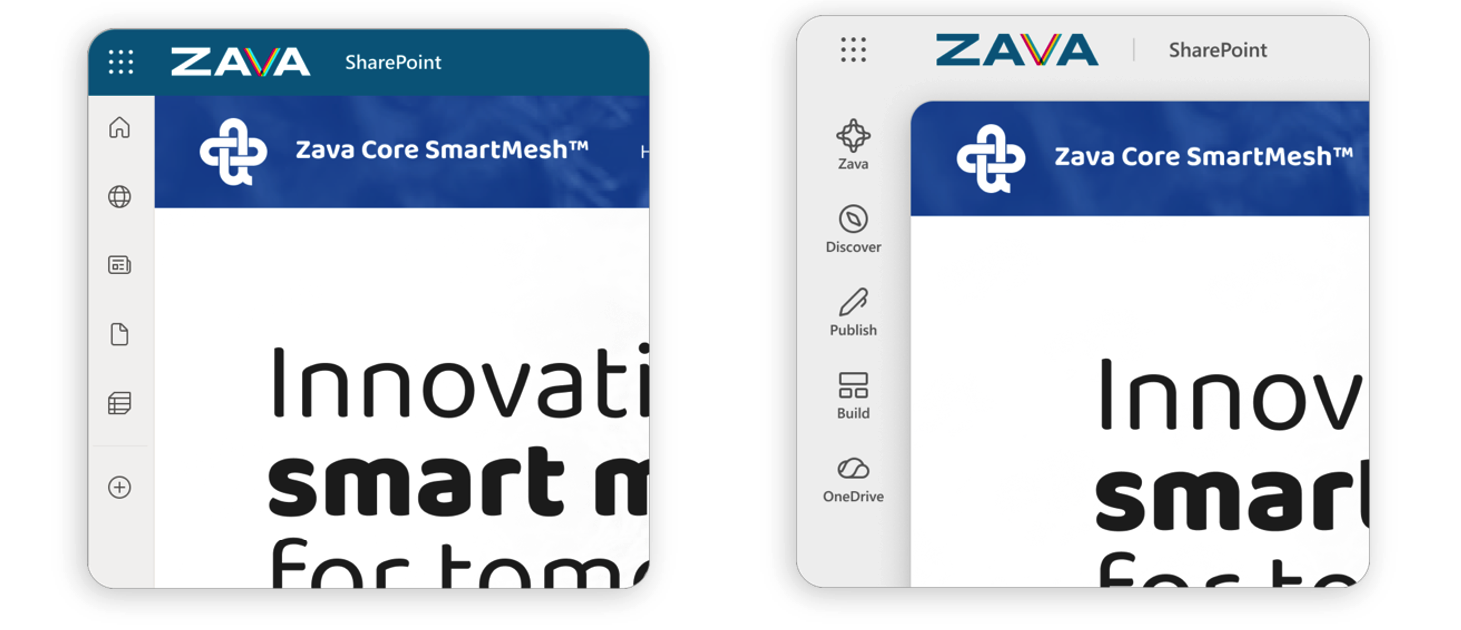
The left-hand menu is now an icon bar
The familiar list of links down the side gets replaced by a slim bar of icons. There are four main spots: Discover, Publish, Build, and OneDrive. (If you've set up a home site, you'll also see a Home icon.)
Discover is where people land first. It's a personalised start page that surfaces sites, news, and content Microsoft thinks are relevant to each user. Publish is for creating pages and news. Build is for making sites, lists, and libraries.
What managers need to do: log in and check that your important sites and news still show up where people expect. If your team has spent years learning the old navigation, give them a heads-up that the furniture has moved.
AI buttons appear in document libraries
You'll see new AI Actions in the command bar above your files. Summarise, Compare, and Ask a question. They let someone get the gist of a document without opening it.
These only appear for users who have a Microsoft 365 Copilot licence. If nobody on your team has one, you won't see them at all. If some people do and others don't, expect a few "why can't I see that button" questions.
Your messy column names are about to be on show
There are two changes that put your library's structure front and centre.
Active filters now appear as labelled pills above every library, with the column names visible. And any custom views you've built turn into clickable tabs sitting above the files.
When was the last time you checked your filter naming? If you've got a view called "test2" or a column named "Misc Stuff Do Not Delete," it's about to get prominent billing on everyone's screen. Worth a tidy-up before the rollout reaches you.
There’s a new Forms button to collect files
Every document library gets a Forms button. It lets your team collect files and information from people without giving those people access to the folder or site. Someone clicks a link, drags in their file, fills in a few fields, and it lands in your library sorted and tagged.
Anyone who can edit a library can now create one of these collection links. That's a small permissions question worth settling before someone sets one up without realising what it opens.
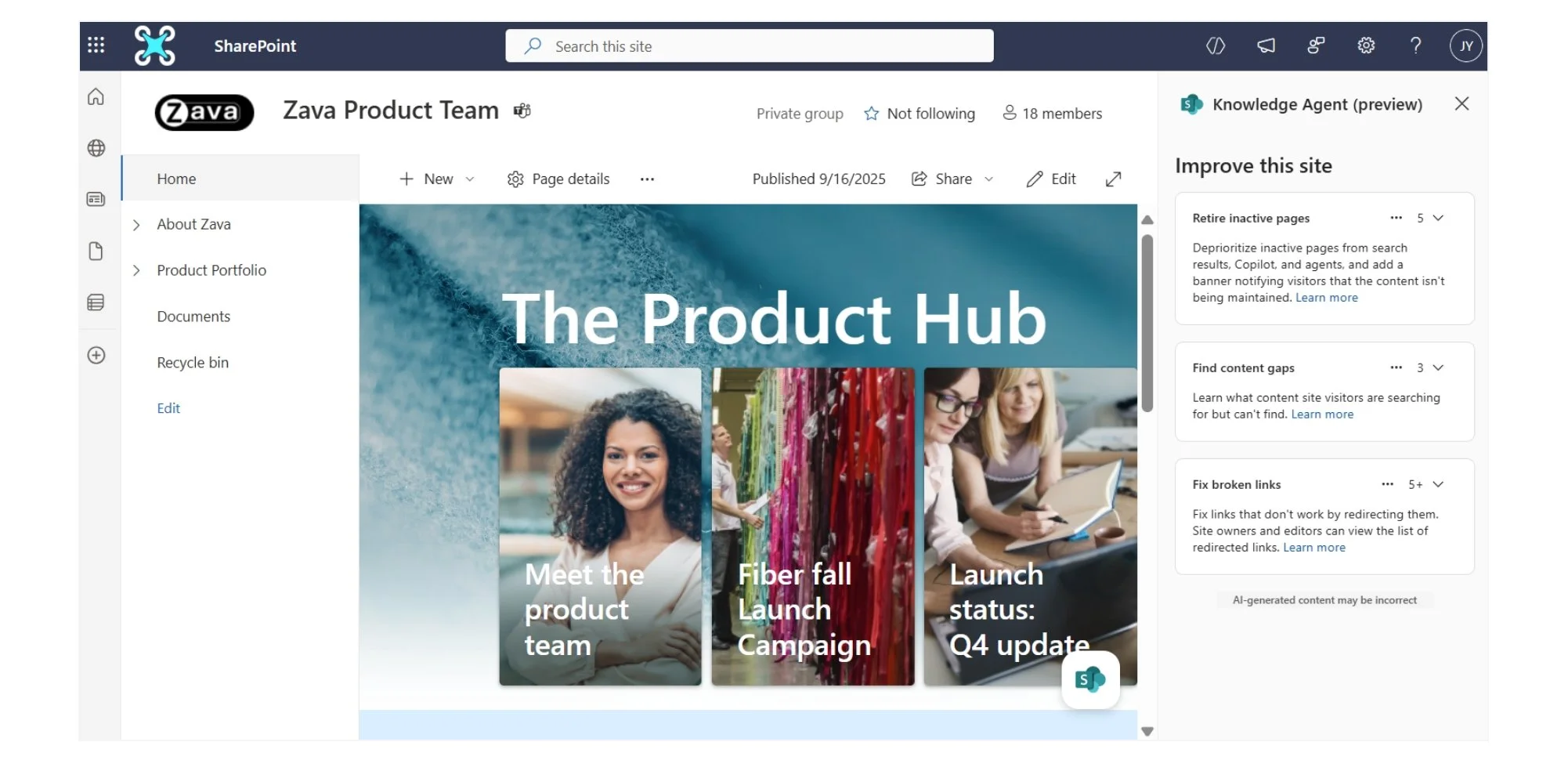
Microsoft: Knowledge Agent in SharePoint helps site owners and page creators better manage and curate content for employees.
What Sharepoint Managers should do
Log in and look around now, before your team hits you with questions.
Tidy any views or columns with embarrassing or confusing names.
Decide who's allowed to create the new Forms collection links before anyone does it for you.
If you'd rather not work through this yourself, reach out to our team for assistance. We can check the navigation, permissions and settings to make sure your team isn't caught out. Give us a call on 07 3185 1777.